An order on Secret Kitchens is a customer telling you what they want, when they want it, and how they will collect it. Depending on your plan and whether card checkout is live, that arrives either as an email you reply to or as a paid order in your dashboard that you tick off. This page explains both, the pre-order tools that shape when customers can order, and what each button in your order list actually does.
Order requests are what every page can take. The customer builds their order from your menu, fills in their name, phone, email, a date and any notes, and presses Send order request. Nothing is paid online. You get an email, the customer gets a copy saying it is a request and not yet confirmed, and you reply to confirm and arrange payment however you normally take it. Requests live in your inbox only. They do not appear in your dashboard.
Paid orders exist once card checkout is live on your kitchen. The customer pays on a Stripe checkout page, the money goes into your own Stripe account, and the order is recorded and shown in your dashboard’s My Orders list as well as emailed to you. Paid orders are confirmed the moment they are paid. The pre-order tools on this page, time slots, windows, caps and closed-until, only take effect on paid orders.
Order requestsAll plans
Paid ordersProfessional (add-on)Premium (add-on)Truck & Stall (included)
The request email is addressed to your orders inbox with the subject New order request, the customer’s name and the order total. It lists every item with quantity and line total, the customer’s name, phone and email, the pickup date they chose, and their notes. If they chose delivery on your page, the delivery address and postcode are in the notes along with a reminder that your delivery fee applies on top.
Reply-to is set to the customer, so pressing Reply in your email app writes straight to them. That reply is the confirmation. Until you send it the customer has been told their order is not confirmed.
Prices in the email are taken from your menu at the moment the request was sent, never from the customer’s browser, so a stale page cannot produce a wrong total. A request for an item you have marked sold out is refused before any email is sent. To slow down spam, a burst of repeated requests from one place is turned away for a few minutes.
Open Dashboard in the rail. Under the totals you will find two tabs, My Orders and History. New paid orders land in My Orders and stay there until you tick them off, sorted soonest pickup first, then by time slot, then by when they were placed. The count of open orders shows as a badge on the Dashboard button in the rail.
Each order card shows the pickup date and time slot, or a Delivery badge and the address, the amount paid, the customer’s name, the items with prices, any pack selections, and the customer’s phone and email. Three buttons sit underneath:
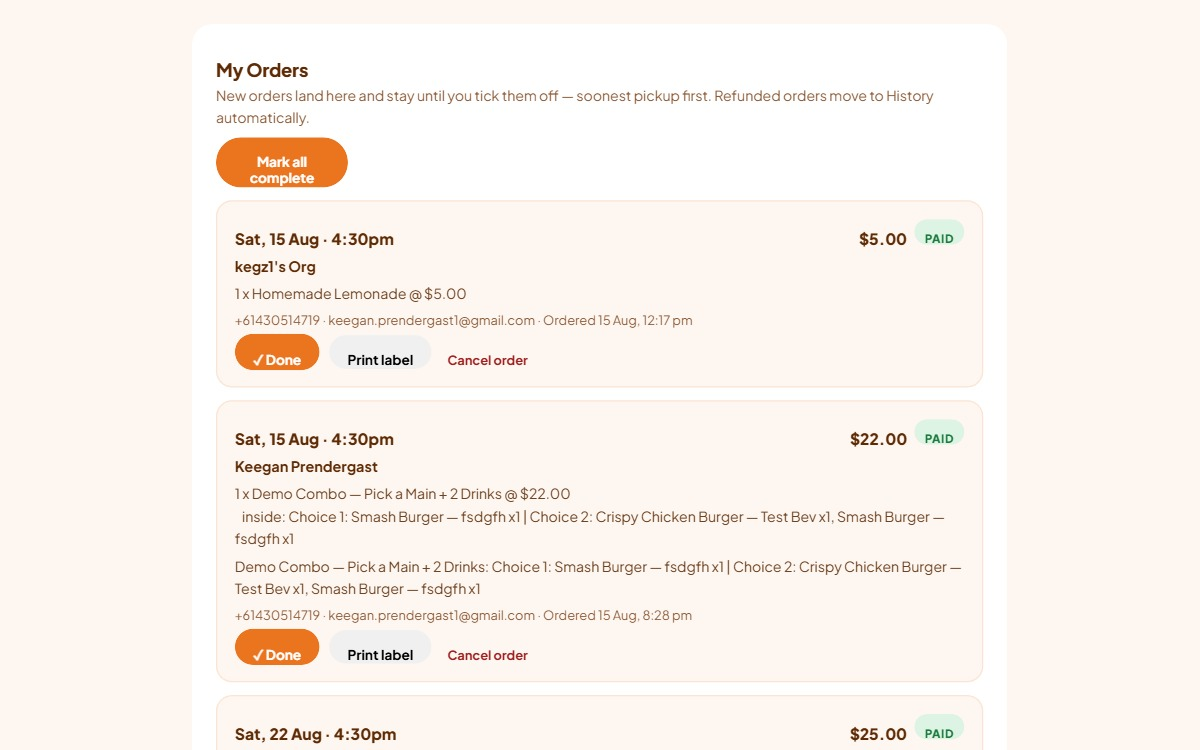
The email for a paid order has the subject PAID order with the customer’s name, the amount and the pickup or delivery date, and says the money is already in your Stripe account. Treat it as your signal to start cooking. The customer receives an Order confirmed email with the same summary. Both emails carry the other party’s reply-to, so either of you can reply to reach the other.
History holds completed and cancelled orders, newest first, plus any order recorded as refunded, which moves there on its own because there is nothing left to action. Refunds stay visible because they are part of the record. Every order in History keeps its Print label button.
Marking an order Done or Cancelled is reversible in the sense that nothing is destroyed, but the dashboard only offers those two moves from the open list. If you tick the wrong order, email info@secret-kitchens.com and we can put it back.
Pickup times turn “pick a date” into “pick a date and a time”. Each paid order arrives with its time so you can batch-cook per window.
Trucks and stalls set pickup times per day, inside the Where to find us calendar in the Profile section. Open a day, press Pre-orders under it, and either make a run of times (From, To, Every, then Make times) or add single times one at a time. Each time can carry its own max number of orders. Time labels are made for you from the start time, so there is nothing to mistype. Days with no times are walk-up only. Customers see only the dates you have planned, then that day’s times.
Home kitchens on Premium set pickup times per weekday in the Pre-orders card instead: type the times you offer on each day separated by commas, for example 4:30pm, 5:00pm, 5:30pm, leave a day empty for no pre-orders that day, and do not use quote marks. Customers pick any date within your ordering horizon and see that weekday’s times.
Delivery times work per weekday for every plan that has them, in their own rows on the Pre-orders card, and only matter when delivery is switched on. Leave every delivery row empty and delivery stays address-only with no time to choose. A kitchen can have pickup times without delivery windows or the other way round.
Weekday rows save with the Save changes button at the bottom of the Profile page; the calendar saves with its own Save this week button. Times only reach customers once card checkout is live, because choosing a time is part of paying ahead. On Professional and Premium without the add-on, the card shows a reminder instead of the time rows.
Pickup timesPremiumTruck & Stall
Delivery timesProfessionalPremiumTruck & Stall
Trucks and stalls with a planned calendar do not have a horizon: a day is orderable from the moment you save it. Each pickup time stops taking orders when it starts, judged in your kitchen’s time zone. To close a whole day earlier, set Orders close at in that day’s Pre-orders panel. Times past their cut-off show as closed on your page.
Home kitchens have How far ahead can people order? under the weekday time rows. It is the number of days into the future the date picker reaches. Blank or 0 means today only. 3 means today plus the next three days. The maximum is 30. It only applies once you have at least one time set on some day. A kitchen with no times at all takes untimed orders for any future date.
Past dates are always refused, in your kitchen’s time zone. A customer who picks a day you have no times for is told to choose another day.
Included onProfessionalPremiumTruck & Stall
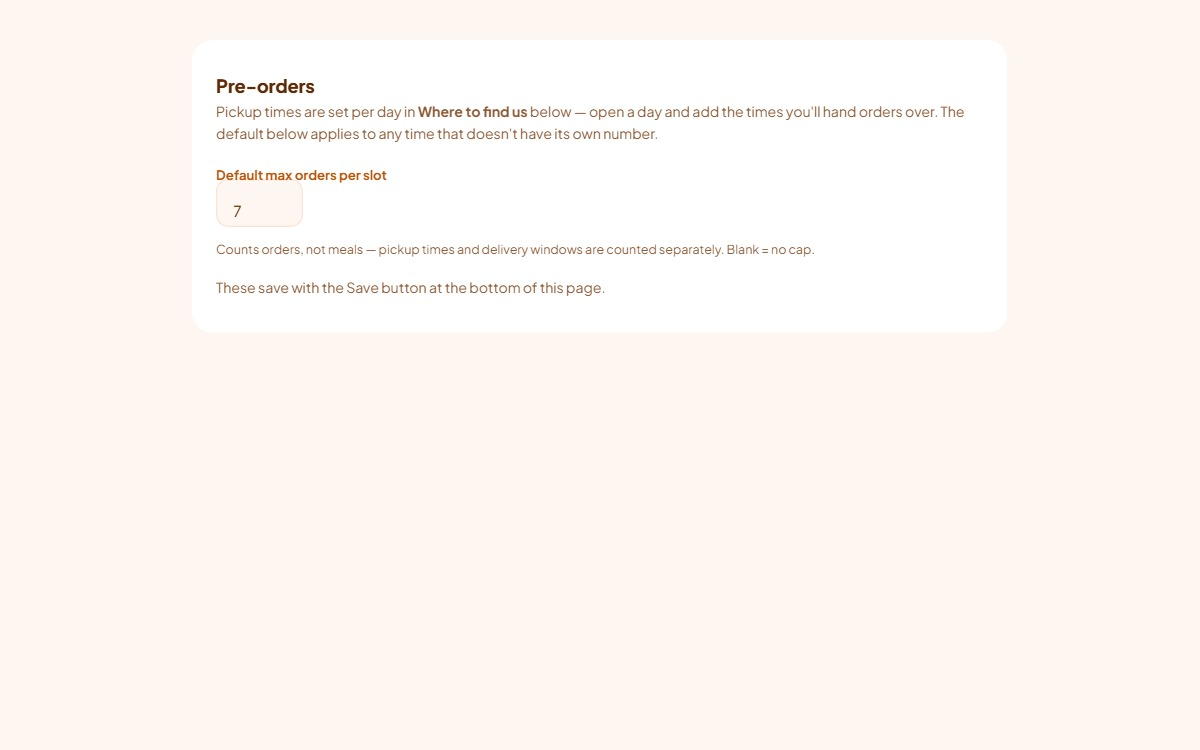
Default max orders per slot, in the Pre-orders card, caps how many paid orders any one time can take. It counts orders, not meals, and pickup times and delivery windows are counted separately. Once a time is full your page shows it as full and stops offering it, and the checkout refuses it if a customer somehow reaches it. Blank means no cap.
Trucks and stalls can override it per day and per time in the Where to find us calendar: a time’s own max wins, then the day’s Max orders per time, then this default.
Two customers can occasionally pay for the last place in a slot at the same moment. Both are recorded, because both have paid, and the second order’s email is marked slot full so you can fit them in, agree a nearby time with them, or refund from your Stripe dashboard.
Included onTruck & Stall
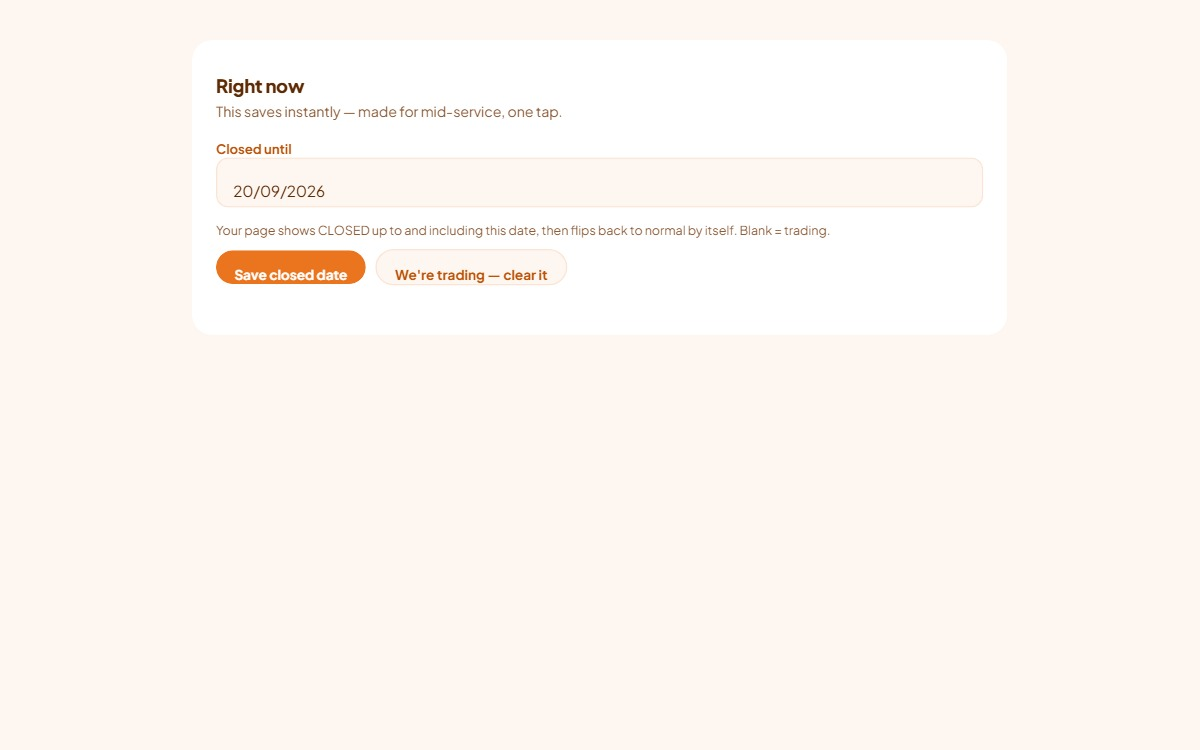
The Right now card at the top of the Profile section holds one date, Closed until. Set it and your page shows CLOSED up to and including that date, customers cannot pick a pre-order date on or before it, and the page flips back to trading by itself the next day. It saves on its own button the instant you press it, so you can use it mid-service from your phone. We’re trading, clear it removes the date.
Included onPremiumTruck & Stall
Because every order is between you and your customer, cancelling has two halves and the dashboard only does one of them.
Above the order tabs is a From and To date filter with Apply and Export CSV. The filter narrows both tabs by the date the order was placed. Export downloads whatever the filter is showing, open orders and history together, as a spreadsheet that opens in Excel or Google Sheets. The columns are when it was ordered in Brisbane time, status, payment, amount, customer name, phone and email, pickup or delivery, pickup date and slot, delivery address, the items, any pack selections, and the order ID.
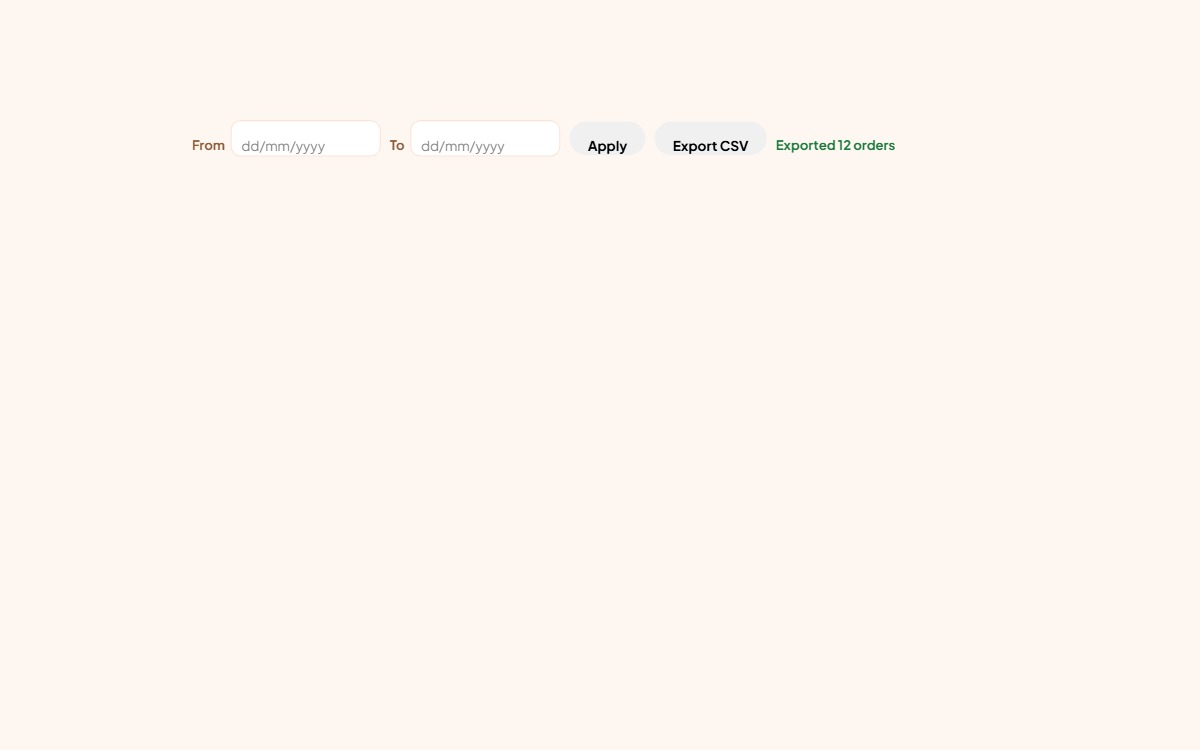
Your dashboard keeps the last 90 days of orders and the totals at the top cover today, this week and the last 90 days. Older orders are removed, so export a CSV now and then if you want records further back, for example at the end of each month for your bookkeeping.
Was this page useful? Tell us what was missing and we’ll improve it.
 Secret Kitchens