Your profile is every detail Secret Kitchens holds about your kitchen, and almost all of it renders straight onto your public page. This page walks through each part of the dashboard editor — what it is, what to put in it, and where it turns up for customers.
The two halves
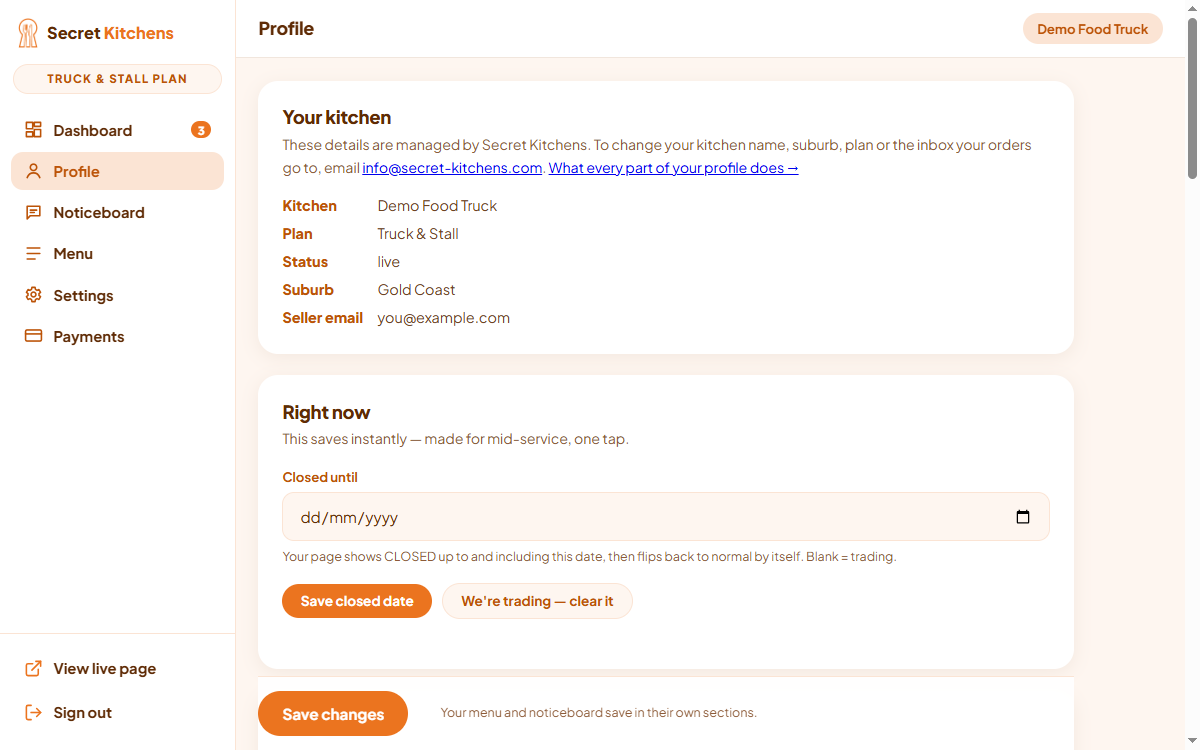
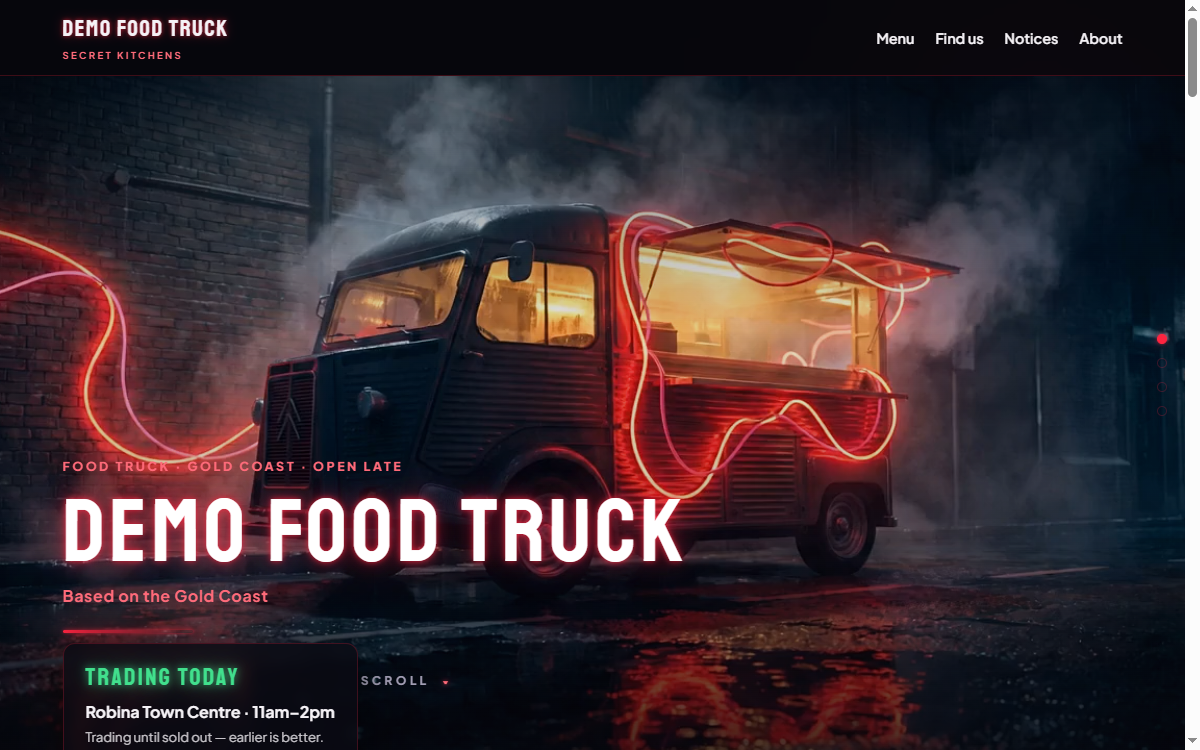
On the left is the Profile section of your dashboard. On the right is the same kitchen’s public page. Almost every field on the left has a home on the right.
Your kitchen → your kitchen name and suburb in the page header and the browser tab.
Right now → the CLOSED banner across the top of your page.
Pre-orders → the pickup time and delivery window pickers customers choose from.
Where to find us → the week’s locations in place of your ordinary hours.
Days & opening hours → the Hours section, plus your notes to customers.
Contact & social links → the Contact section and every social button on the page.
Your story → the Our story section, about halfway down.
Dashboard editor and published page, side by side.
Your kitchen
The details Secret Kitchens manages for you: your kitchen name, plan, status, suburb, and the inbox your orders go to. You can’t edit them yourself — they’re shown so you can check they’re right.
Your kitchen name and suburb appear in your page’s header and in the browser tab. Your seller email is never shown publicly; it’s only where order emails land.
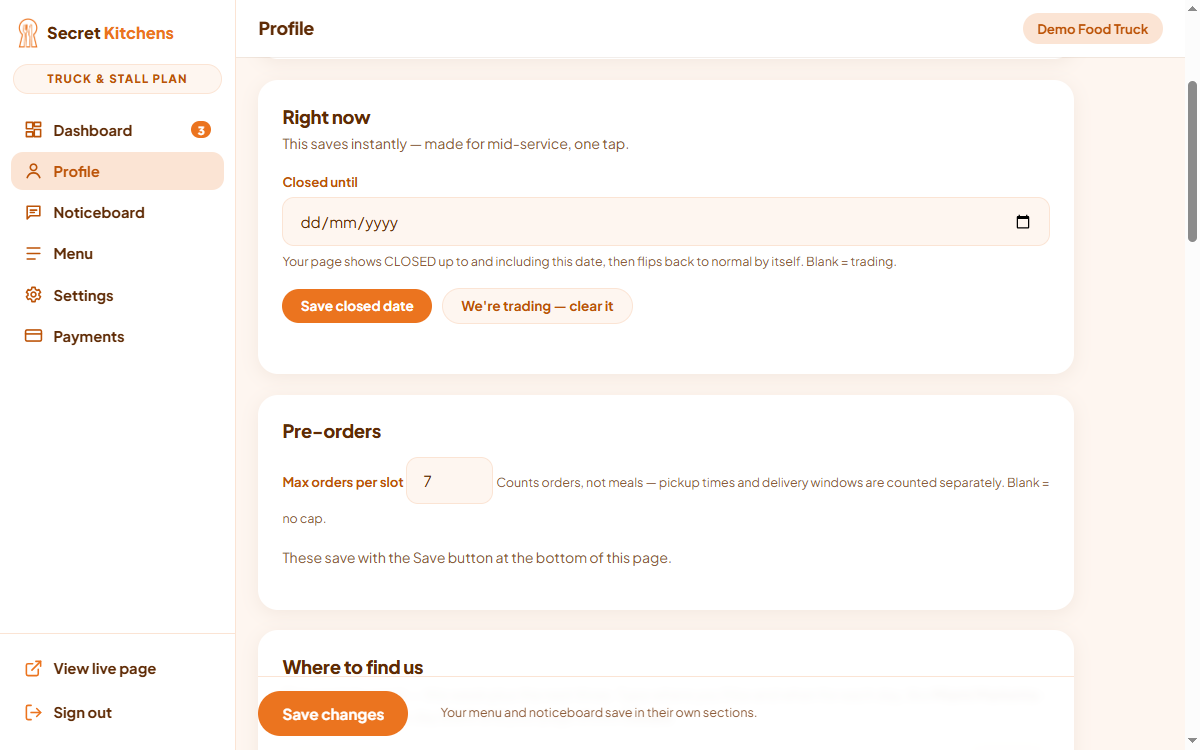
One date field, built for mid-service. Set Closed until and your page shows CLOSED up to and including that date, then flips back to trading by itself — leave it blank when you’re open.
It saves on its own button, instantly, so you don’t need the Save button at the bottom of the page. While it’s set, customers can’t pick a pre-order date on or before it.
The Right now card — one date, two buttons.
Included onPremiumTruck & Stall
Pre-orders
Everything about taking orders ahead of time: which times customers can choose, how many orders each one takes, and how far into the future they can book. These fields save with the Save changes button at the bottom of the Profile page.
The card only appears if your plan includes at least one of the fields below. If your kitchen is a food truck or a stall, the weekday rows are gone from this card: pickup times live per day in Where to find us, and only the default cap stays here.
Home kitchens: pickup times, delivery times, and the two limits underneath them.
Pickup times
Home kitchens: the Monday-to-Sunday rows at the top of the card. Type the times you want to offer for each day, separated by commas, and leave a day empty for no pre-orders that day. Customers see them as a time picker when they order, and each paid order arrives with its time so you can batch-cook per window.
Trucks and stalls: set per day in Where to find us — open a day, press Pre-orders, make a run of times, cap any of them.
Included onPremiumTruck & Stall
Delivery times
The same idea for delivery, used only when delivery is switched on for your kitchen. Leave a day empty for no delivery that day. Leave every day empty and delivery stays address-only, with no time for the customer to choose.
Included onProfessionalPremiumTruck & Stall
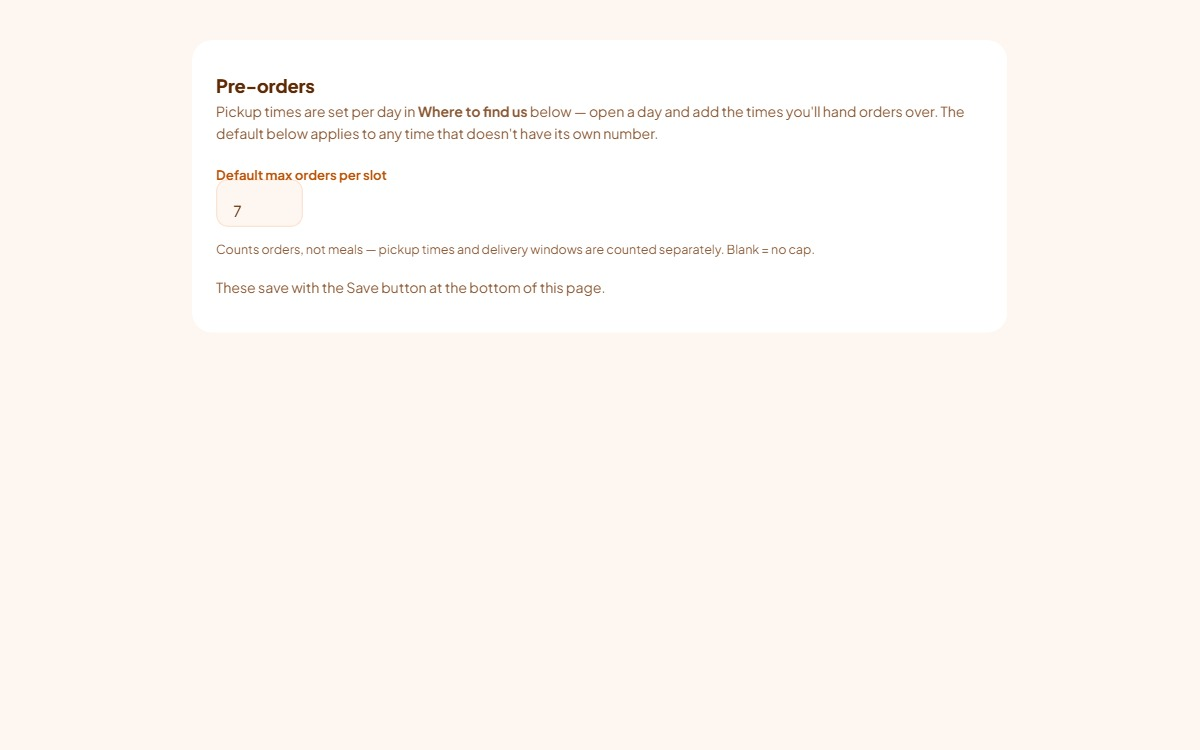
Default max orders per slot
A cap on how many orders any single time can take. It counts orders, not meals, and pickup times and delivery windows are counted separately. Once a time is full it stops being offered; blank means no cap. Trucks and stalls can override it on any day or any single time in the calendar; this is the number used when neither sets its own.
Included onTruck & Stall
How far ahead can people order?
How many days into the future the date picker reaches. 0 or blank is same-day only; 3 is today plus the next three days. It appears whenever you have pickup times or delivery times available. Trucks and stalls do not see it: their customers choose from the days planned in the calendar, and each time closes when it starts unless the day sets an earlier Orders close at.
Included onProfessionalPremiumTruck & Stall
Times only reach customers once card payments are switched on and working — they’re part of paying ahead, not of the request form. On Truck & Stall that’s part of the plan; on Professional and Premium it’s the $25/month add-on. See Card payments setup.
Section overallProfessionalPremiumTruck & Stall
Where to find us
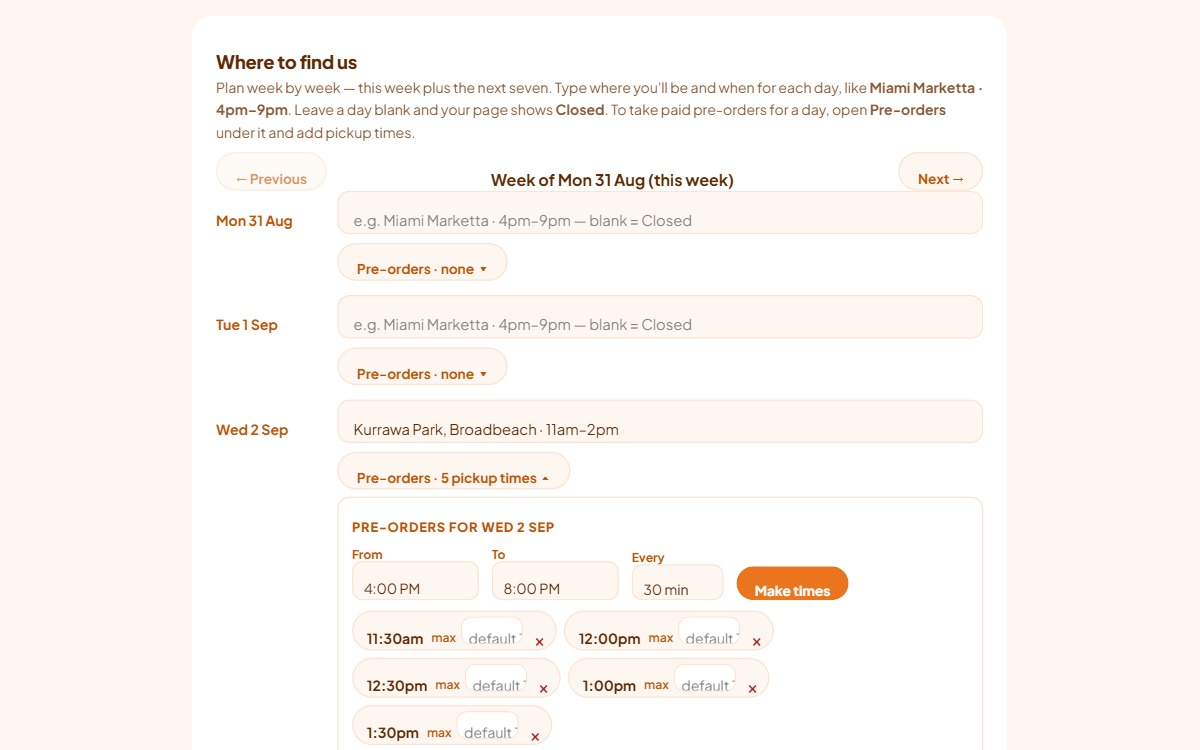
A week-by-week calendar — this week plus the next seven — for kitchens that move. Type where you’ll be and when for each day, like Miami Marketta · 4pm–9pm, and leave a day blank to show Closed for it. Blanking a day that had pickup times removes them too.
Under each day is a Pre-orders button. Open it to plan paid pre-orders for that day: choose From, To and Every and press Make times for a run of pickup times, or add a single time. Each time shows as a chip with its own max orders; leave it blank to use the day’s Max orders per time, and leave that blank to use your default from the Pre-orders card. Orders close at shuts every time on that day early; otherwise each time closes when it starts, in your kitchen’s time zone. A day with no times is walk-up only.
It has its own Save this week button. What you save replaces your ordinary opening hours on the page for that week; until you save a week, your page keeps showing your usual weekly text. Once any upcoming day is saved, your page lists those dates for pre-orders and ignores any weekday times typed earlier.
Eight weeks to plan with, one save per week. Pre-orders open per day.
This card appears only if your kitchen is set up as a food truck or a stall. It isn’t a plan feature — every plan gets it if that’s what you are. Home kitchens see the weekly hours rows in the next section instead.
Included onAll plans
Days & opening hours
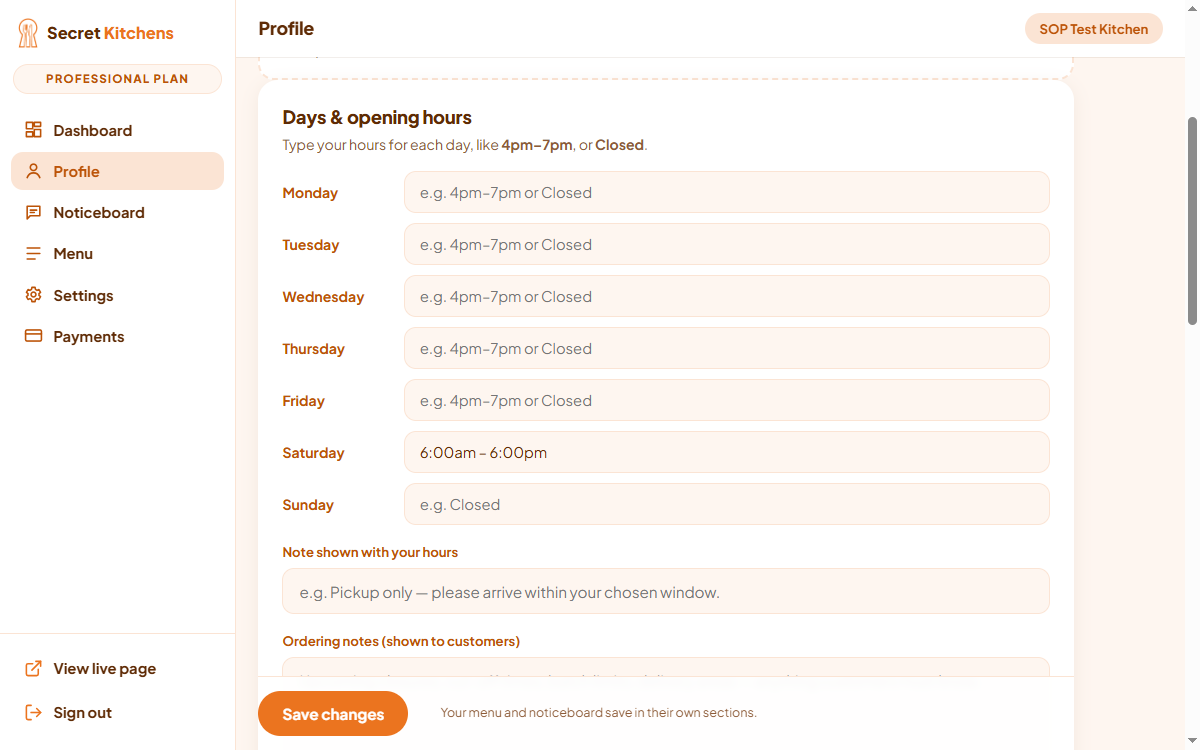
Your ordinary trading hours, one row per day. Type them however you’d say them — 4pm–7pm, or Closed — and they render as the Hours section of your page.
Your time zone and three free-text fields sit underneath for the things hours alone can’t say:
Time zone
The Australian zone your kitchen trades in. Your “today”, your week, your pre-order cut-offs and the totals on your Dashboard are all judged in it. Set from your postcode at registration; change it here if you move.
Note shown with your hours
One line beside your hours, for a standing instruction: “Pickup only — please arrive within your chosen window.”
Ordering notes (shown to customers)
Upcoming closures, cut-off times, batch limits — anything a customer must know before they order.
Delivery details (shown to customers)
Where you deliver, which days, minimum order, the suburbs you cover.
Seven day rows, then your time zone and the three fields customers read alongside them.
If your kitchen is a food truck or a stall, this card is titled Notes for customers and the day rows are gone — Where to find us replaces them. The three fields above stay exactly the same.
Included onAll plans
Contact & social links
How customers reach you outside an order: a public contact email, a public phone number, and links to Facebook, Instagram and TikTok. Paste full links starting with https://.
These fill the Contact section at the bottom of your page and the social buttons scattered through it. Leave any of them blank and that button simply doesn’t appear — nothing breaks and no empty space is left behind.
Your public contact email is not your orders inbox. Changing it here doesn’t move where your orders go — email info@secret-kitchens.com for that.
Included onAll plans
Your story
The founder story on your page: who you are, what you cook, why you started. Write it in your own voice and take the space you need.
It renders as Our story, about halfway down your page — it’s the section customers read just before they decide to order, so it’s worth more than a line.
Included onAll plans
Other parts of your dashboard that show on your page
These live in their own dashboard sections rather than under Profile, but they render on the same public page.
Noticeboard
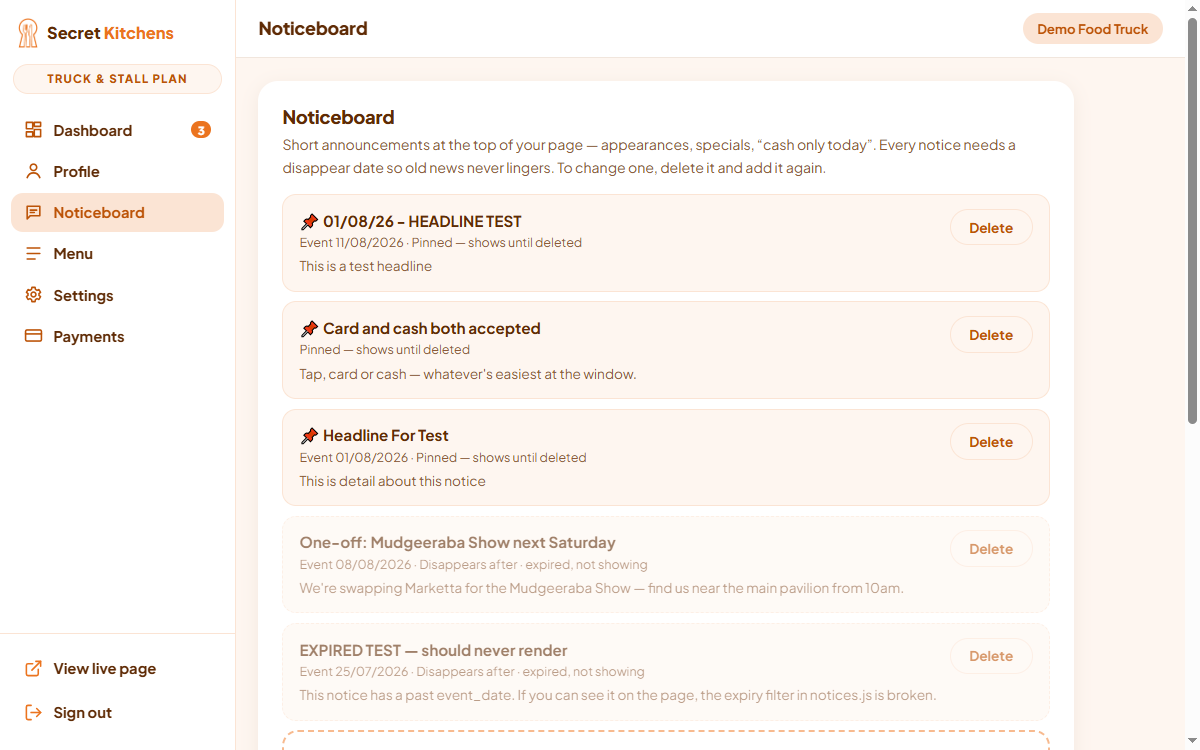
Short announcements at the top of your page — appearances, specials, “cash only today”. Each notice takes a headline, optional detail, and an optional event date.
Every notice needs a Disappears after date so old news never lingers, and you can pin one to stay at the top until you delete it. To change a notice, delete it and add it again.
Notices expire on their own — that’s the point of the date.
Included onAll plans
Your menu
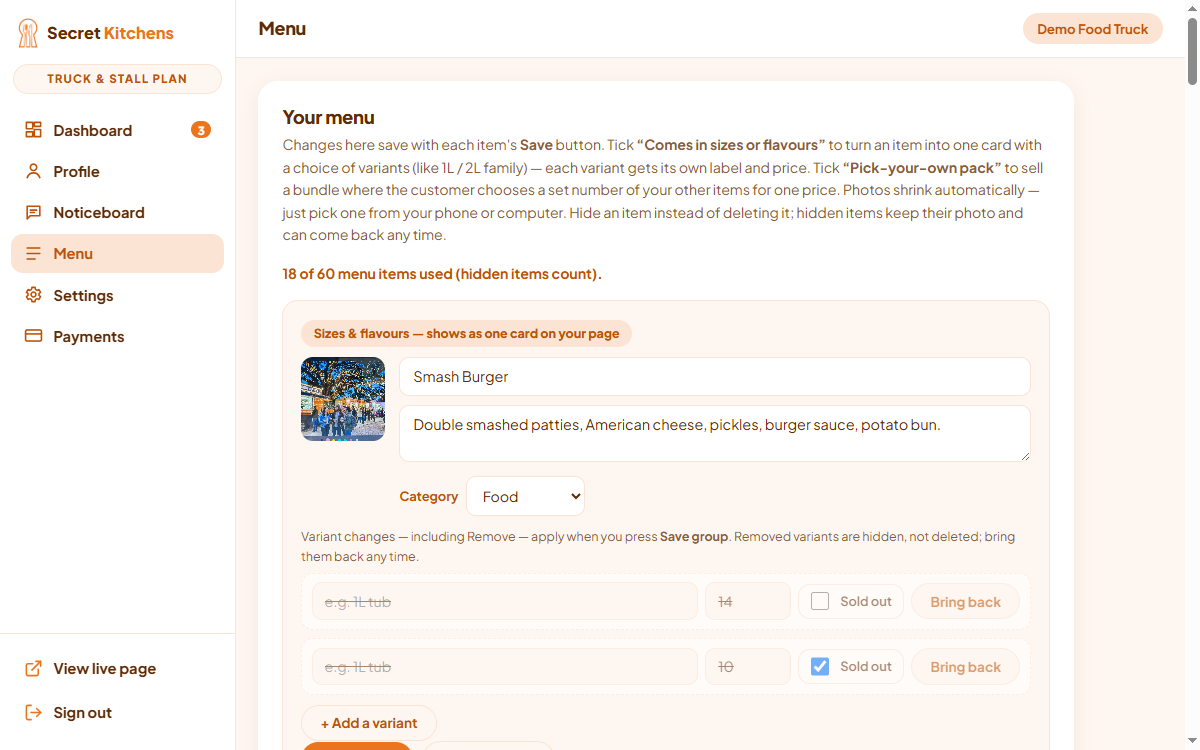
Every meal you sell, with its price, description and photo. Photos shrink automatically — just pick one from your phone or computer. Each item saves with its own Save button.
Hide an item rather than deleting it: hidden items keep their photo and can come back any time. Hidden items still count toward your item limit, and so does each variant.
Menu items by plan
Plan
Menu items
Essential
20
Professional
40
Premium
60
Truck & Stall
60
The counter under the heading tells you how much room is left.
Comes in sizes or flavours
Turns one item into a single card with a choice of 2–6 variants — a 1L and a 2L family size, say. Each variant carries its own label and price, and the description becomes the card’s intro line.
Included onAll plans
Category
Groups your menu into Food, Beverages and Specials, and puts filter pills above the menu on your page so customers can narrow it down. Leave it as None and the item just sits in the main list.
Included onPremiumTruck & Stall
Pick-your-own pack
A bundle where the customer chooses a set number of your other items for one price — a “pick 6” box. It shows as its own card on the menu with a picker built in, and the price you set is for the whole pack.
Included onProfessionalPremiumTruck & Stall
Section overallAll plans
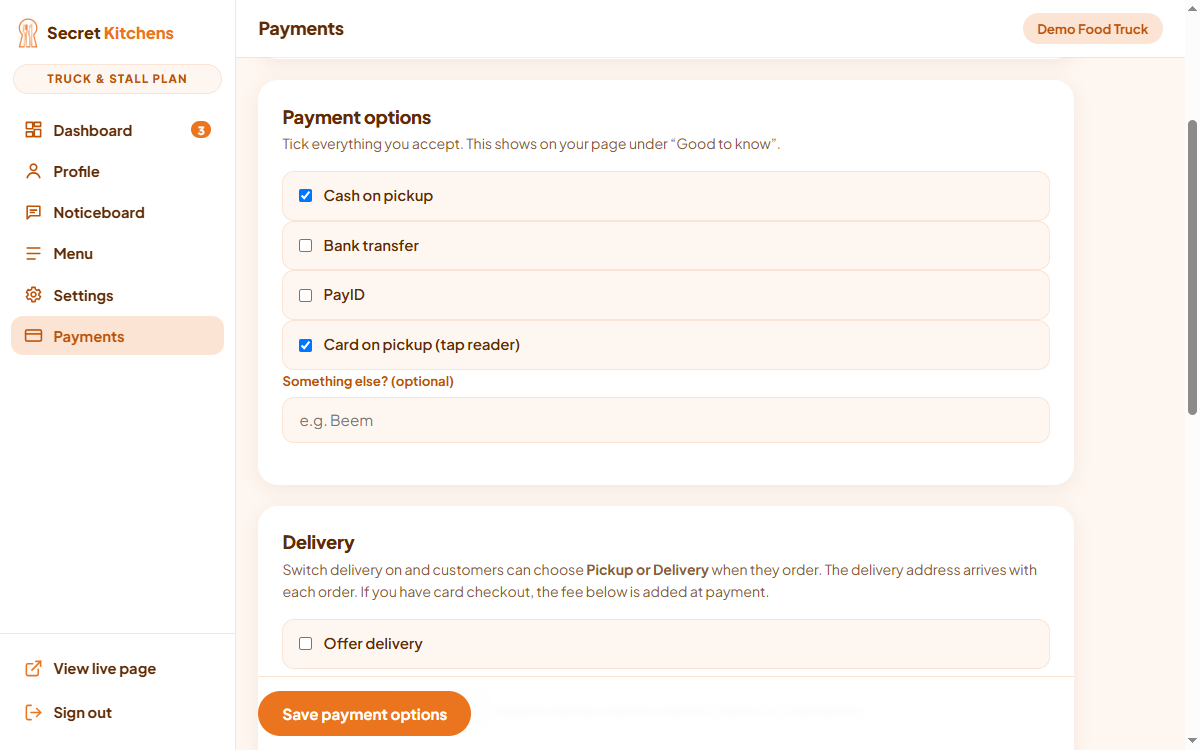
Payment options
Tick everything you accept in person: cash on pickup, bank transfer, PayID, card on pickup, plus a free-text line for anything else you take.
These render as a list under Good to know on your page. It’s a statement of what you accept — nothing here charges anybody.
Included onAll plans
Delivery
Switch Offer delivery on and customers choose Pickup or Delivery when they order, with the delivery address arriving on each order.
Minimum order for delivery and Postcodes you deliver to are both enforced when the customer pays — an order that breaks either is refused. Leave the postcodes blank to deliver anywhere.
Payment options and Delivery sit together in the Payments section.
Delivery fee ($)
Added to delivery orders when the customer pays. Blank or 0 is free delivery, and the fee never counts toward your minimum order.
Included onProfessionalPremiumTruck & Stall
Section overallAll plans
Tip the Cook
Paste your own Stripe payment link and a Tip the cook button appears on your page. Tips go straight into your own Stripe account — Secret Kitchens never touches them.
It must be a live link starting with https://buy.stripe.com/, created in your own Stripe dashboard under Payment Links. Test links won’t work. Leave it blank to hide the button.
Included onProfessionalPremiumTruck & Stall
Card payments setup
Connects your own Stripe account so customers pay by card on your page and the money goes straight to you — Secret Kitchens never holds it.
Once it’s live your page gains a cart and a checkout, and paid orders appear in your dashboard’s order list rather than only by email. Pickup times, delivery times and the delivery fee all need it switched on before they do anything.
On Truck & Stall card checkout is part of the plan. On Professional and Premium it’s a $25/month add-on on top of your plan — email info@secret-kitchens.com to turn it on.
Included onProfessionalPremiumTruck & Stall
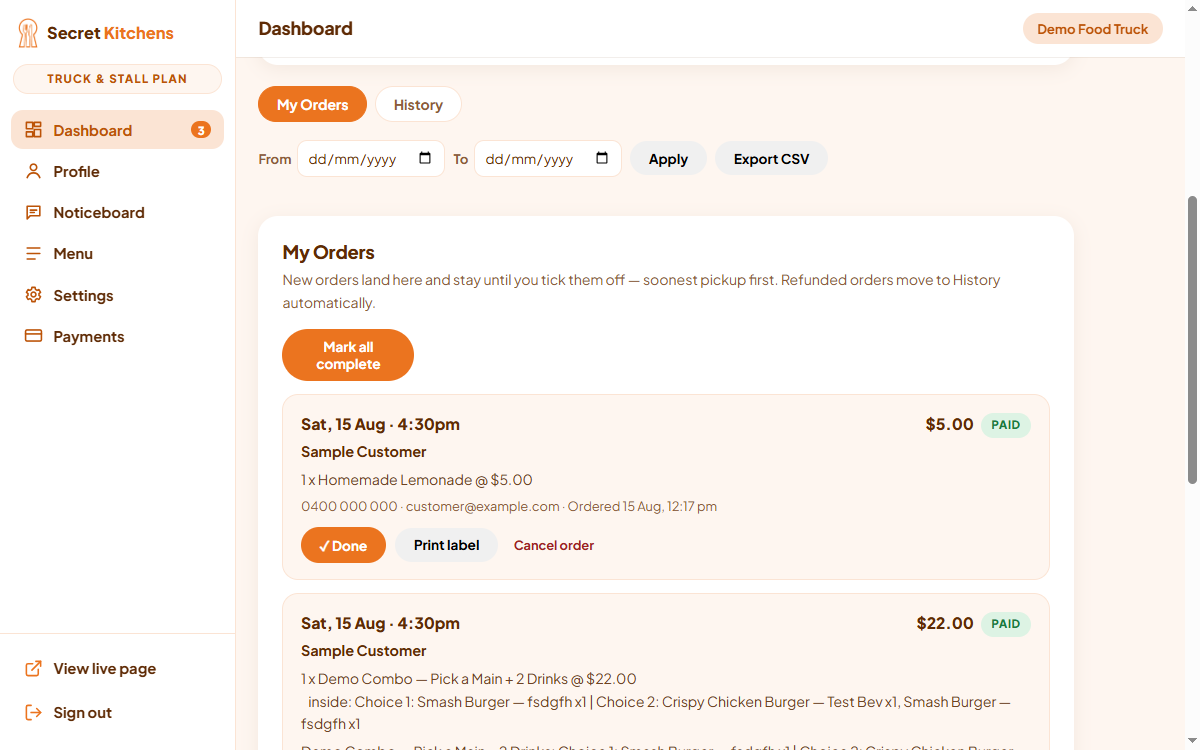
My Orders
Where paid orders land. New orders stay in the list until you tick them off — soonest pickup first — and completed, cancelled and refunded orders move to History. Only card-paid orders appear here; order requests come to you by email instead.
Each order carries its own Done, Print label and Cancel buttons.
Print label
Every order has a Print label button — made for a label printer mid-service in a truck or stall, and it works just as well from your phone as your laptop. It prints one 54 × 101 mm sticker: the customer’s name, their pickup time (or DELIVERY and the address), what they ordered with the prices stripped off, and their phone number.
It uses your device’s ordinary print dialog, so any label printer your phone or laptop can already print to will take it. Need one again? Orders in History keep their Print label button for reprints.
Export CSV
Above the order list is a From / To date filter with an Export CSV button. It downloads whatever the filter is showing — open orders and history together — as a spreadsheet that opens straight in Excel or Google Sheets: when it was ordered, payment and status, customer details, fulfilment, pickup slot, the items, and the order ID.
Your dashboard keeps the last 90 days of orders, so export a CSV now and then if you want records further back than that.
Orders appear here once card payments are live — on Truck & Stall that’s part of the plan; on Professional and Premium it comes with the $25/month add-on.
Section overallProfessionalPremiumTruck & Stall
Where it all shows up
One published page, top to bottom, with the profile section behind each part of it labelled.
Your page, labelled by the profile section behind each part.
 Secret Kitchens