Secret Kitchens never holds your money. Whether a customer pays you cash at the door or by card on your page, the payment is between you and them, and card payments go straight into a Stripe account that belongs to you. This page explains what the Payments section of your dashboard controls, how card checkout is switched on, and where fees, payouts and refunds live.
Every kitchen is the seller of everything on its page. When a customer pays by card, the charge is made on your Stripe account, in your name, and settles to your bank account on Stripe’s payout schedule. Secret Kitchens is not in the middle of that payment, takes no commission, and cannot see or touch the balance. What you pay us is your plan subscription and, on Professional and Premium, the card checkout add-on. Nothing else.
The flip side is that refunds, disputes and payout timing are yours, handled in your own Stripe dashboard, exactly as they would be for a card reader at a market.
Open Payments in the dashboard rail. The Payment options card lists the ways you accept payment in person: Cash on pickup, Bank transfer, PayID, Card on pickup (tap reader), and a free-text line for anything else, such as Beem. Tick what you accept and press Save payment options.
These render on your page under Good to know so a customer knows how to pay before they send a request. They are a statement of what you accept. Nothing here charges anybody. On a page with card checkout live, they describe the alternatives for customers who would rather arrange payment with you directly.
Included onAll plans
With card checkout live, the order form on your page changes from Send order request to Pay & place order. The customer chooses a date, a time if you offer them, pickup or delivery, and is taken to a secure Stripe page to pay. Stripe collects their name, phone and email there. On return, your page confirms the payment and tells them their receipt is in their email.
On Truck & Stall, card checkout is included. On Professional and Premium it is the AUD 25 a month add-on. On Essential it is not available. See Card checkout add-on.
Available onProfessional (add-on)Premium (add-on)Truck & Stall (included)
The Card payments setup card at the top of the Payments section appears on every plan that can have checkout. It shows one of four states, and the state tells you what to do next.
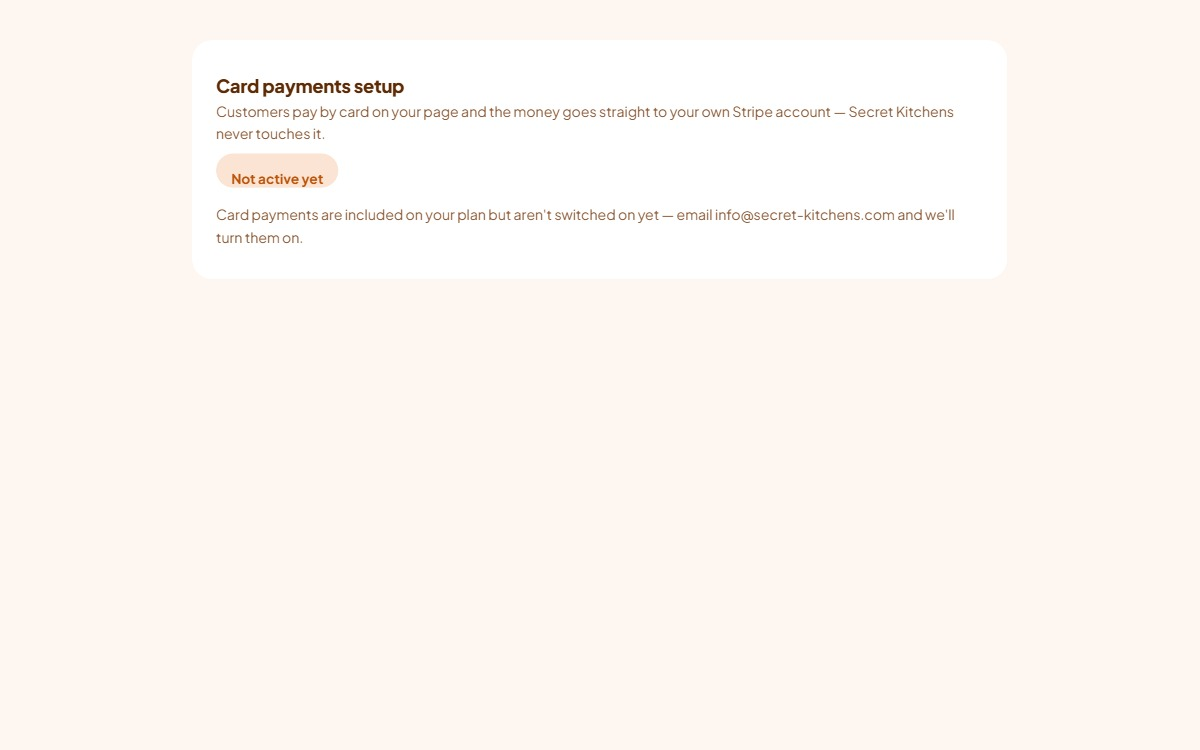
Two things must be true for checkout to appear on your page: we have switched it on for your kitchen, and Stripe has approved your account to take charges. If Stripe later pauses your account, for example because it needs an updated document, your page quietly drops back to the request form until it is resolved, so a customer is never sent to a checkout that cannot take their money.
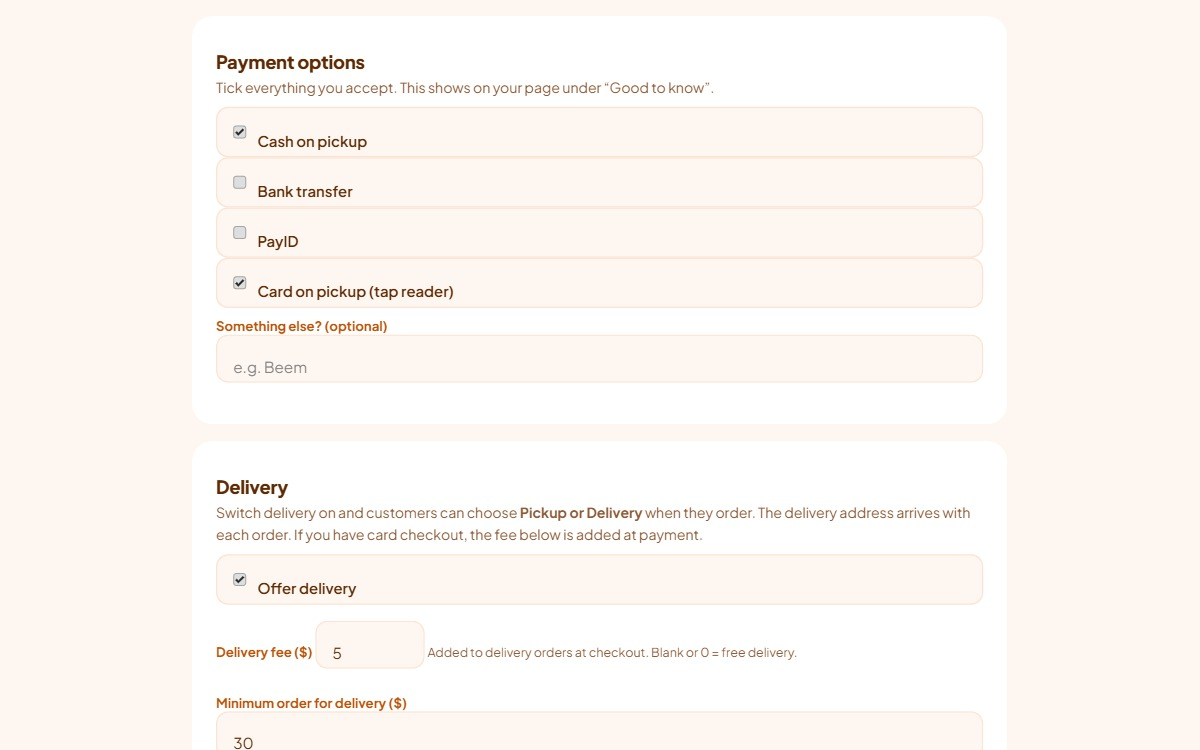
The Delivery card in the Payments section holds everything about delivering. Tick Offer delivery and customers see a Pickup or Delivery choice when they order, with an address field on delivery. The address arrives with each order.
Your page states the minimum and the area from the same settings the checkout enforces, so what a customer reads and what they are held to cannot drift apart. Describe the arrangement in words too, which days, which suburbs, in the Delivery details field in the Profile section. Press Save payment options to save the Delivery card.
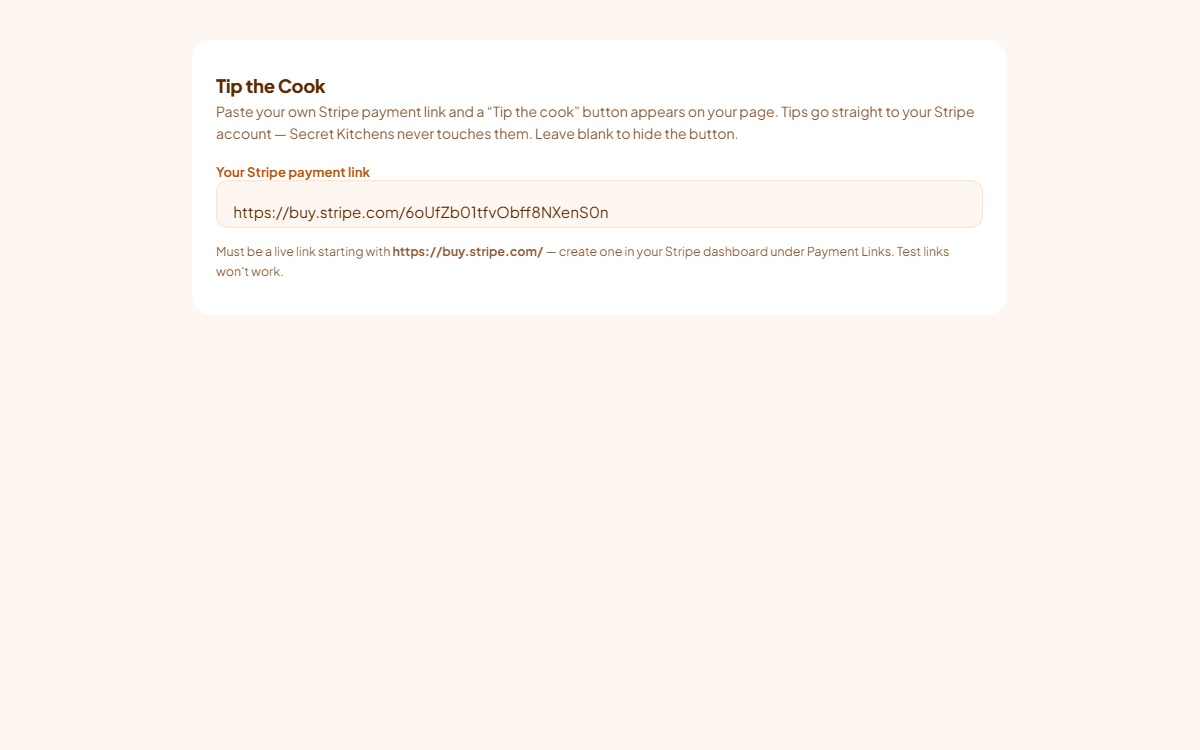
Paste your own Stripe payment link into Your Stripe payment link on the Tip the Cook card and a “Tip the cook” button appears on your page. Tips go straight into your Stripe account. It must be a live link beginning with https://buy.stripe.com/, created in your Stripe dashboard under Payment Links. Test links are refused and the button stays hidden. Leave the field blank to hide the button.
You do not need card checkout for this. Any Stripe account can create a payment link, so a Professional kitchen on the request flow can still take tips.
Included onProfessionalPremiumTruck & Stall
On every card payment, Stripe’s standard fees apply, shown in your Stripe dashboard on each payment. Secret Kitchens adds nothing on top and takes no commission. Your plan and, where it applies, the add-on are the only things you pay us.
Payouts from your Stripe balance to your bank account follow the schedule shown in your Stripe dashboard. Stripe sets that schedule and any hold on a new account, and it is the same for you as for any business using Stripe directly. If a payout looks late, check Stripe first.
A card refund is issued from your Stripe dashboard: find the payment, press Refund, and the money goes back to the card the customer paid with, usually within five to ten business days. Refunds for orders paid in person are arranged directly with the customer. We cannot refund on your behalf because we never hold the money.
Two situations put a warning at the top of a paid-order email. Stock problem means the order sold more than you had left, because two customers paid at the same moment. Slot full means the order was paid after a pickup time reached its cap. In both cases the customer has already paid. Fit them in if you can, agree an alternative with them, or refund them today from Stripe and let them know.
What customers can expect from you, and what the Australian Consumer Law requires of every seller, is set out on our Refunds and cancellations page. Marking an order cancelled in your dashboard is a label only and never moves money.
Open the Payments section and read the status pill. Setup not finished means Stripe has paused your account and needs something from you, usually a document or an updated detail. Press the button to see what. Not active yet means checkout was switched off for your kitchen, which we only do after talking to you, most often because the add-on subscription has lapsed. Status unavailable means the dashboard could not reach Stripe just now, so refresh in a minute.
While checkout is unavailable your page still takes order requests, so customers are never stuck. If the pill says active and customers still cannot pay, email info@secret-kitchens.com with the time it happened and what the customer saw.
Was this page useful? Tell us what was missing and we’ll improve it.
 Secret Kitchens