Secret Kitchens Help Centre

Getting started

Registering is how Secret Kitchens learns what you cook, how you sell it and what your page should feel like. We build the page from what you tell us, you approve it, and it goes live at its own address. This page walks through that whole journey so nothing about it is a surprise.

What registering gets you

Every kitchen on Secret Kitchens gets a single-page website with its own address, secret-kitchens.com/sellers/your-kitchen/. The page carries your hero photo, your menu with prices and photos, your story, your hours or your weekly locations, how customers can reach you, and a way to order. Customers can order by sending an order request, which arrives in your inbox by email, or, on plans with card checkout, by paying on the page and having the order land in your dashboard.

You also get a dashboard where you manage the page yourself: menu items, prices, photos, hours, notices, delivery settings and orders. There is nothing to install and nothing to code. Registration is free and no card is needed until your page is live.

Included onAll plans

Before you start

The form takes about ten minutes if you have the following to hand. The more detail you give, the closer the first draft of your page will be to what you want.

You will also be asked to confirm that you are responsible for meeting the food-business requirements in your state or territory. You can register before you are licensed, the form has a “Not yet” option, and we will point you in the right direction for your area.

The registration form

The form at secret-kitchens.com/register/ is split into sections. Sections marked with a red asterisk are required, everything else is optional and can be added later from your dashboard.
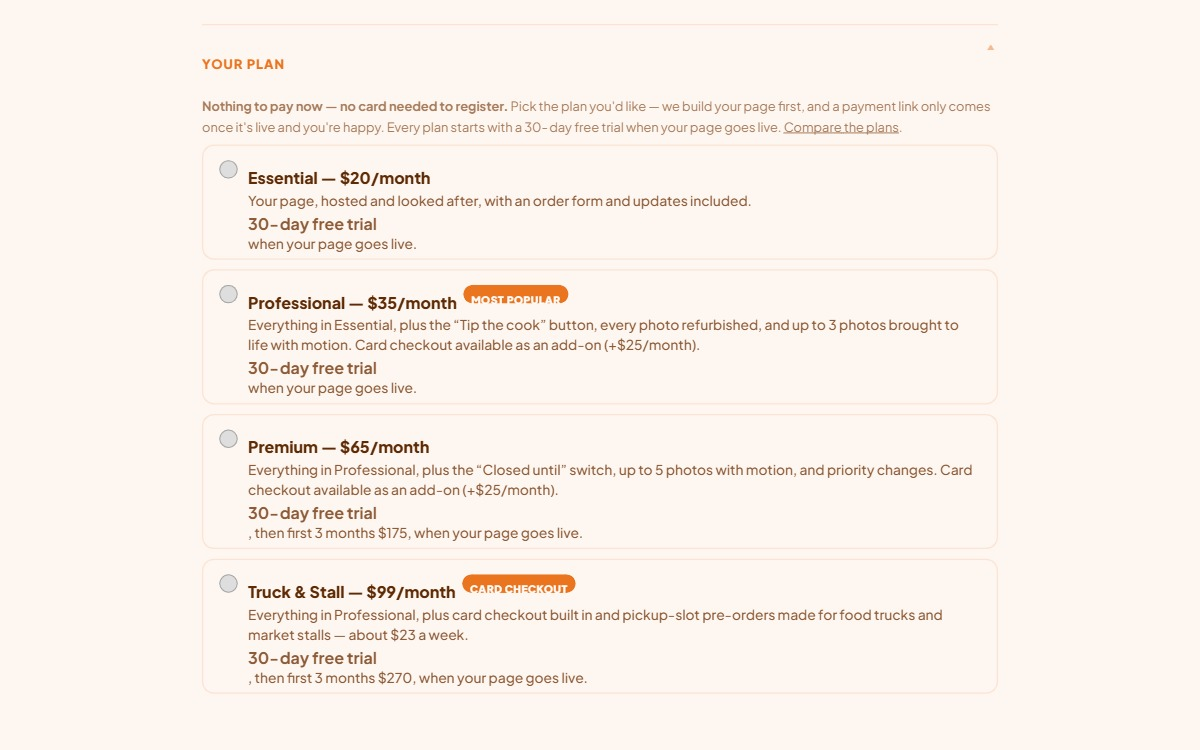
  1. Your plan. Pick Essential, Professional, Premium or Truck & Stall. Nothing is charged now. See Plans and billing for what each includes.
  2. About you. Your kitchen name, your name, email and phone, address, suburb and postcode, country, what you cook, and an optional business reference number. The email is where your draft page and your order requests go. Your street address is for pickup details and our records only. It is never shown on your page unless you ask.
  3. Your menu. One line per meal: name, description, price and photo, with an optional “About” sentence for the card. Tick sizes or flavours on a meal that comes in variants and list each variant with its price. Tick pick-your-own pack for a bundle where the customer chooses a set number of items for one price. On Premium and Truck & Stall you can also give each meal a category. You can drag meals into the order you want them shown.
  4. Your story and rules. Your story, whether you offer pickup or delivery, delivery details, minimum order, the postcodes you deliver to, a delivery fee on plans that include one, your days and opening hours with an optional comment per day, the ways customers can pay you, ordering notes, and whether you cook from a licensed kitchen.
  5. Links and orders. Where you advertise now, and every way customers can place an order: the online order form, Facebook, Instagram, email or something else. Tick more than one and your page shows them all.
  6. Extras. The card checkout add-on, a “Tip the cook” button with your own Stripe payment link, and an optional “Support Secret Kitchens” button.
  7. Your page’s look. Your hero photo and card photo, any extra look images, and a few words on the feel you want. Your cuisine tells us what you cook. This tells us the mood.
  8. Contact information. The links and details shown in your page’s footer, plus an optional footer heading and any notes about how you want to be contacted.
  9. Confirm and agree. The compliance confirmation and the Terms of Service and Privacy Policy, then the security check and Submit my kitchen.
The Your plan section at the top of the Secret Kitchens registration form, with the four plans as selectable cards.
The form starts with your plan and works down to your contact details.
Trucks and stallsChoose the Truck & Stall plan and tell us whether you are a food truck or a market stall. Your dashboard then gets a week-by-week Where to find us calendar in place of fixed opening hours, so customers always see where you will be this week. Fill in the hours rows on the form anyway, they become your notes to customers until you save your first week.

Create your dashboard login

Straight after you submit, the thank-you page asks you to create your dashboard login: the email you registered with and a password of at least eight characters. Do this now rather than later. Your kitchen is attached to this login when we build your page, and it is how you will sign in to manage your menu, hours and orders once you are live.

Your password is never sent through the registration form itself and we never see it. If you already have a Secret Kitchens login from an earlier registration, the page will tell you, and you can sign in with that one instead.
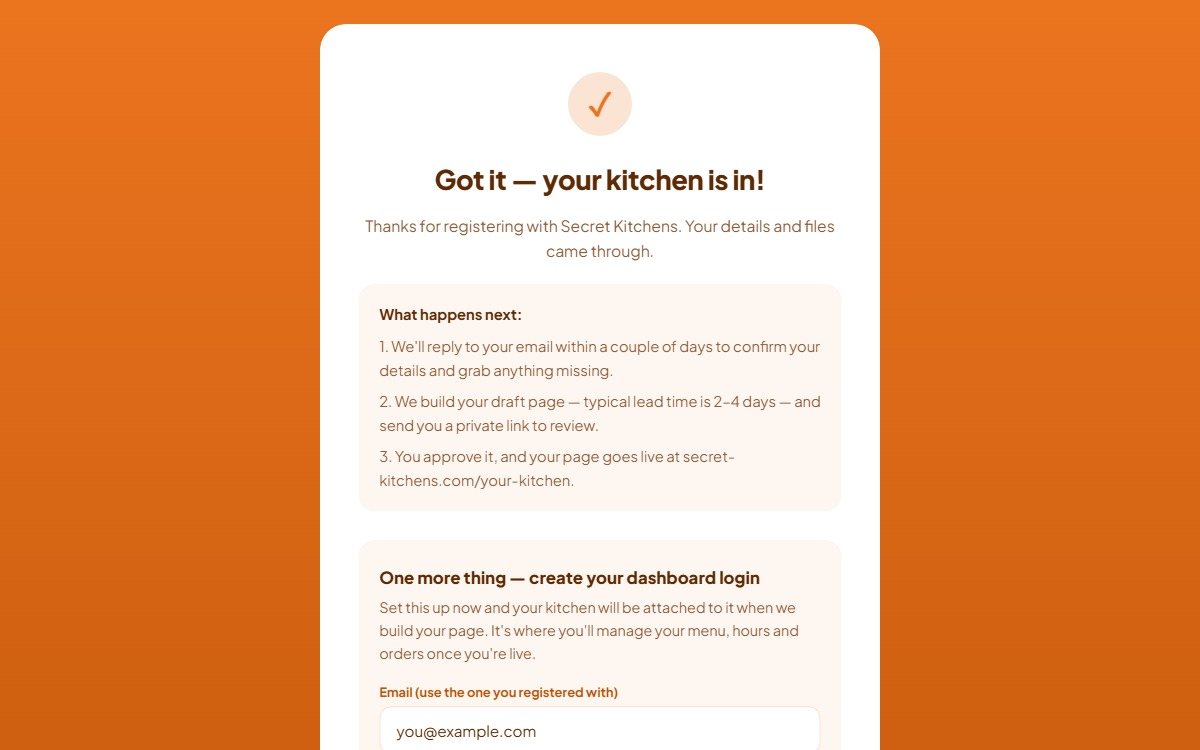
The registration thank-you page, showing the three next steps and the Create my login form beneath them.
Use the same email you registered with, so your kitchen can be matched to your login.
Skipped it? You can still create a login later, but your dashboard cannot be attached until you do. Email info@secret-kitchens.com if you are unsure whether you have one.

After you submit

Your registration arrives with us as a summary plus every photo you uploaded, and a draft record of your kitchen and menu is created behind the scenes. Nothing about it is public yet: a draft kitchen has no page, no menu endpoint and cannot take orders until it goes live.

  1. We confirm the details. We reply by email within a couple of days to check everything and ask for anything missing, such as a photo that did not come through or a meal without a price.
  2. We build your draft page. Typical lead time is two to four days. You get a private link to review.
  3. You tell us what to change. Collect your changes in one message where you can. We keep revising until you approve it in writing. Design changes happen at this stage, before the live data is wired in.

If we need something from you and cannot get it, the build waits. Photos are the most common hold-up: every photo on your page must show your food or your own setting, so a stock image or a photo of a dish you do not sell will be sent back for a replacement.

Going live

Once you have approved the design, we wire the page to your live menu and profile, verify it, and switch your kitchen to live. At that moment you receive one email, and it contains everything you need:

Billing is handled by Stripe. Receipts and any charges come by email from Stripe, and your plan’s price is on the link you were sent.

Card checkoutProfessional (add-on)Premium (add-on)Truck & Stall (included)

Your first sign-in

Go to secret-kitchens.com/dashboard/login/ and sign in with the email and password you created. If you sign in before your page is live you will see a holding screen that says we are building your kitchen page. That is expected: the dashboard appears the moment your kitchen is attached to your login, and we email you when it is.
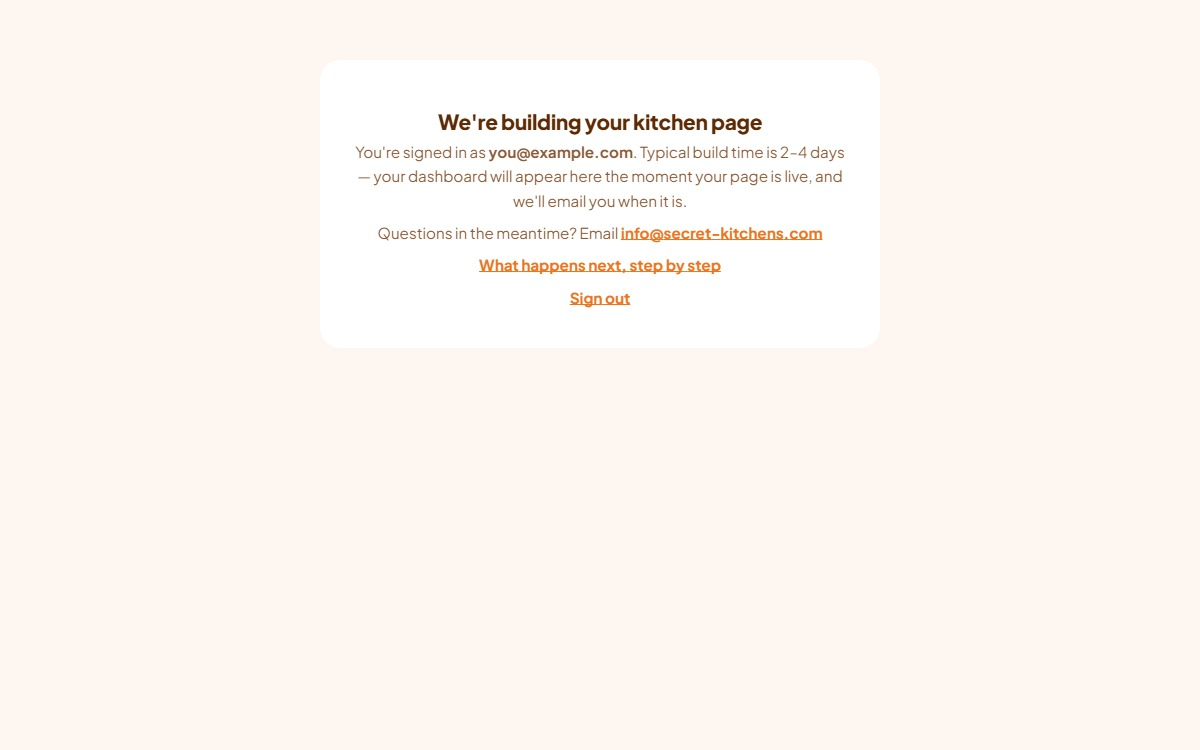
The dashboard holding screen shown before a kitchen is attached: a card reading We're building your kitchen page, with the signed-in email and a sign-out link.
The holding screen. Once your page is live this becomes your full dashboard.

Once you are in, the Dashboard tour shows you around, and Your profile, explained covers every field and where it appears on your page.

Was this page useful? Tell us what was missing and we’ll improve it.