Your dashboard is where you run your page after it goes live. It is a single screen with six sections in a left-hand rail, and every change you save there renders on your public page within a minute or two. This page shows you around so you know where each thing lives and what it controls.
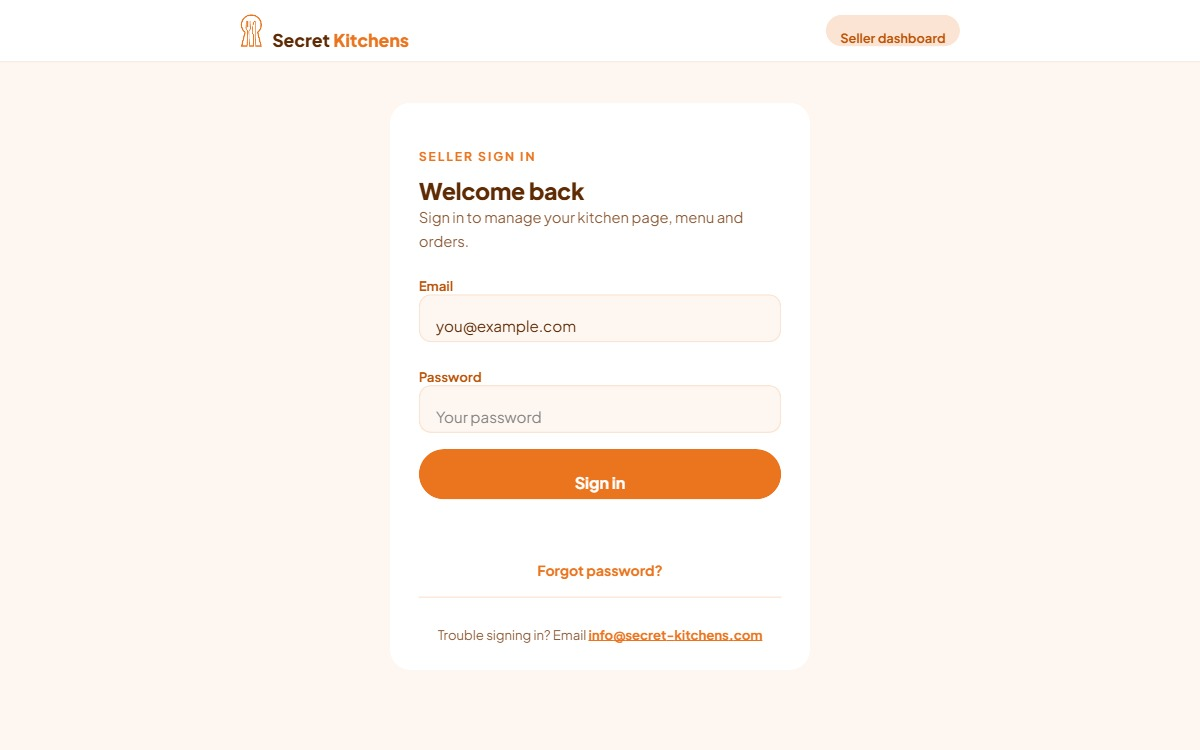
Go to secret-kitchens.com/dashboard/login/, or press Log in in the header of any Secret Kitchens page. Enter the email and password you created on the registration thank-you page and press Sign in. You stay signed in on that device until you sign out or the session expires, and a signed-in visit to the login page goes straight through to the dashboard.
To sign out, press Sign out at the bottom of the rail. If your session has expired, the dashboard sends you back to the login page rather than letting a save fail silently.
If the link has expired or been used, the reset page says so and offers to send a new one. If no email arrives, check your junk folder, then email info@secret-kitchens.com from the address you registered with.
The rail on the left lists six sections. On a phone it is hidden behind the menu button at the top left. Your plan is shown at the top of the rail and your kitchen name at the top right of the screen.
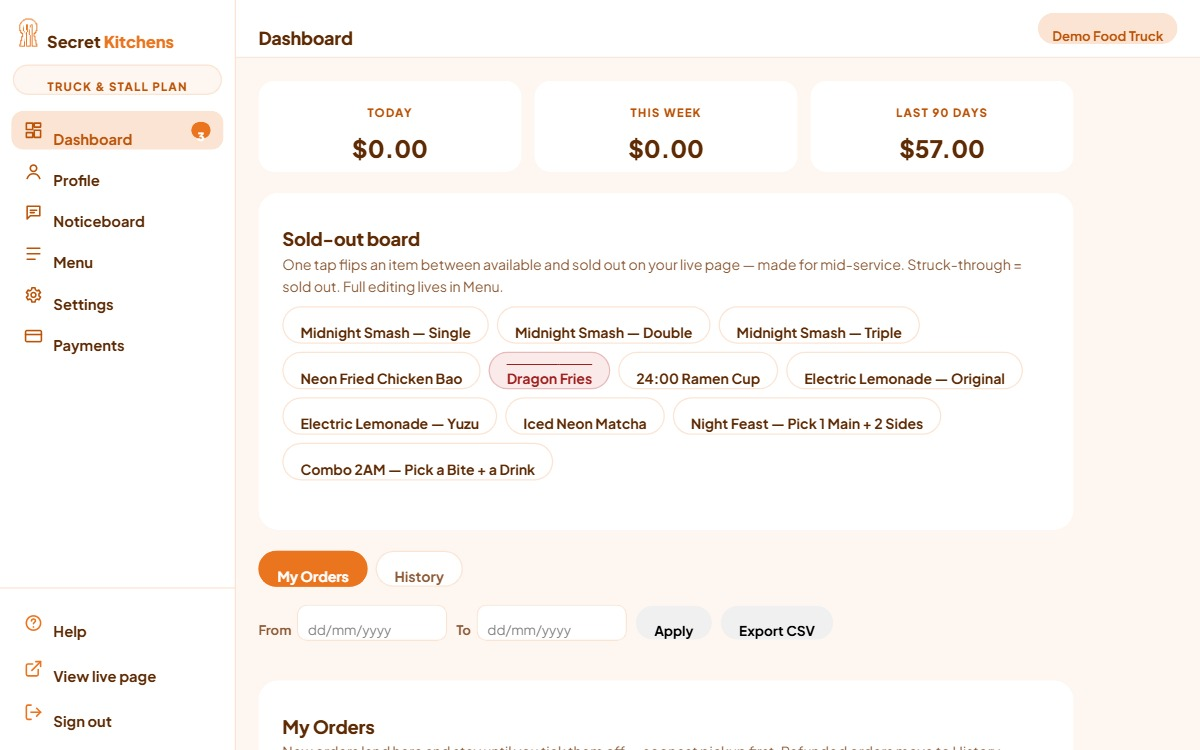
The three cards at the top, Today, This week and Last 90 days, add up paid orders only, in your kitchen’s time zone (set in Profile), with the week starting Monday. Order requests are not counted because nothing is paid through the page. Below them are the My Orders and History tabs with the date filter and CSV export, covered in Orders.
On Truck & Stall the Sold-out board sits above the order tabs so it is the first thing you reach mid-service.
Profile is the longest section. The first card, Your kitchen, shows the details we manage for you: kitchen name, plan, status, suburb and the inbox your orders go to. You cannot edit these yourself. Everything below it is yours to edit, and most of it saves with the single Save changes button that stays pinned to the bottom of the page. Two cards save on their own buttons because they are meant for mid-service: Right now (closed until) and, on trucks and stalls, Where to find us.
The Save button starts disabled and wakes up once your details have loaded. If it stays disabled, refresh the page. This protects you from saving an empty form over your real details when the load failed.
Every card and field is explained on Your profile, explained, with where it shows up on your page.
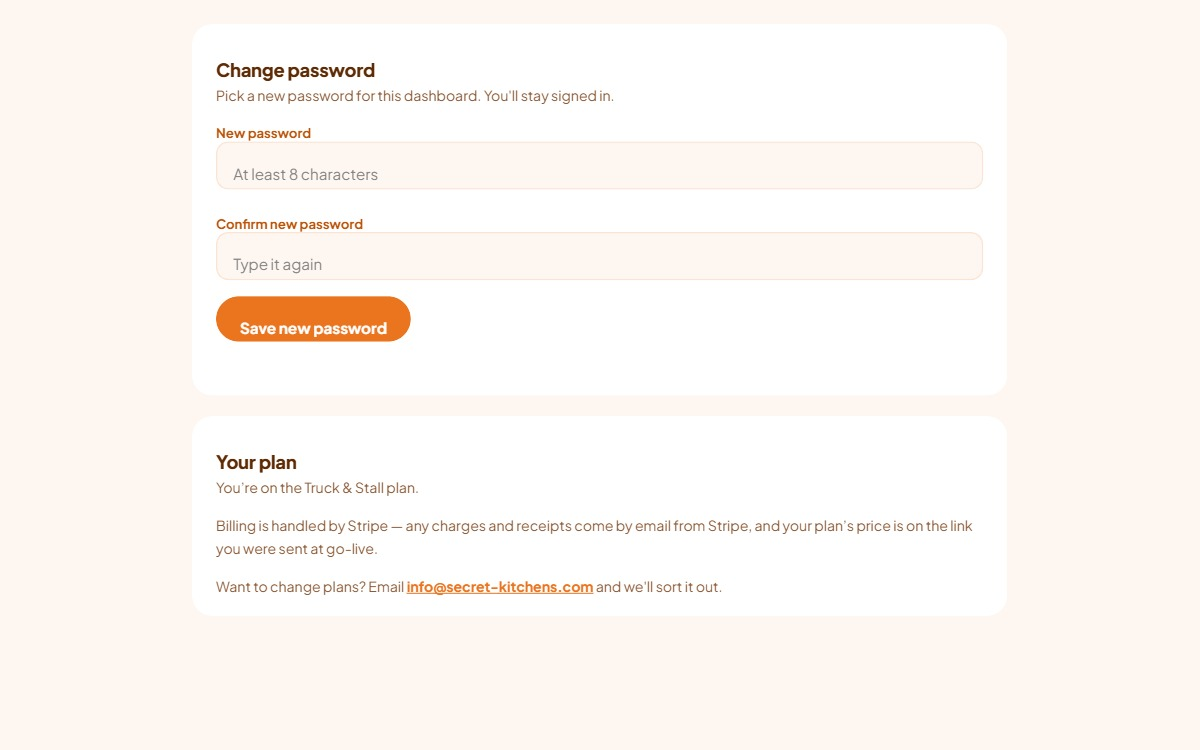
Change password asks for a new password twice and saves it while keeping you signed in. Your plan states which plan you are on and reminds you that billing is handled by Stripe, with charges and receipts arriving by email from Stripe and your price on the link you were sent at go-live. To change plans, email info@secret-kitchens.com.
View live page at the bottom of the rail opens your public page in a new tab. Use it to check a change after you save. Your page is allowed to keep a copy of your profile and menu for up to a minute, so if a change is not there yet, wait a minute and reload. Pickup-time availability is read fresh on every visit.
Everything the platform sends you comes from the Secret Kitchens orders address and can be replied to. Add it to your contacts so it never lands in junk.
Saving a change in the dashboard also notifies us in the background, so a wrong price or an accidental edit can be traced and put right. You do not receive a copy.
The dashboard is built to be used from a phone at a stall. The rail collapses behind the menu button, cards stack in one column, and the mid-service controls, the sold-out board, closed until, Done and Print label, are one tap each. Photos are shrunk on your phone before upload. Print label uses your phone’s own print dialog, so any label printer your phone can print to will work.
Add the login page to your home screen and it opens like an app. Your session is kept on that device.
Was this page useful? Tell us what was missing and we’ll improve it.
 Secret Kitchens